Connect the 3D model MCP server to Claude
Copy the server URL. You'll paste it in the next step.
https://mcp.kreat3d.io/mcpConnect the AI 3D Model MCP to Claude, ChatGPT, Cursor, or Codex. Generate, texture, remesh, and export 3D models without leaving your AI agent.
https://mcp.kreat3d.io/mcpCopy the server URL. You'll paste it in the next step.
https://mcp.kreat3d.io/mcpIn Claude, go to Settings → Connectors and add a custom connector.
Open Claude settingsPaste the URL, connect your Kreat3D account, and ask for your first model.
“Generate a 3D model of a steampunk desk lamp with brass and glass materials.”
FROM CONVERSATION TO CREATION
Start with a prompt, photo, sketch, or mesh. The agent selects the right generation, texturing, or remeshing tool, then returns the finished file.

READY-TO-RUN BRIEFS
Start with model generation, AI texturing, or mesh optimization. Add your references, then let the agent choose the right 3D tools.
4 workflows found
YOUR COMPLETE 3D TOOLKIT
Generate models from images or text, create and refine textures, remesh geometry, and build concept references through one MCP connection.
01 / IMAGE
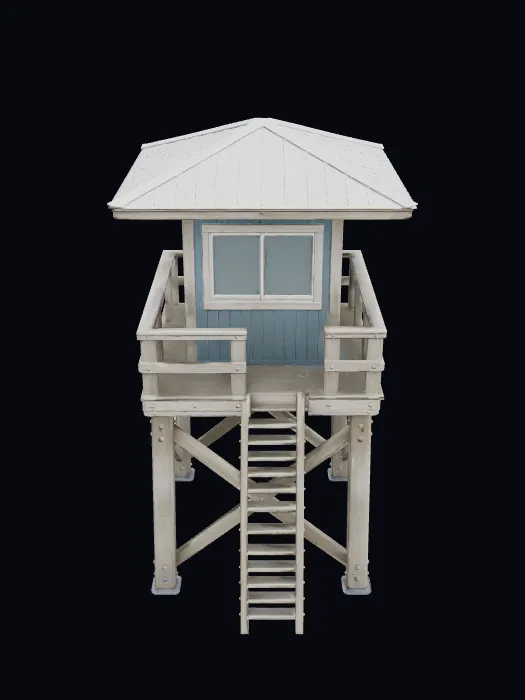
Generate a 3D model from a photo, product shot, sketch, or reference image. Kreat3D builds the mesh and textures so your AI agent can return an asset ready for the next step.
Turn an image into 3D“Turn this coastal lifeguard tower reference into a detailed, game-ready 3D model.”
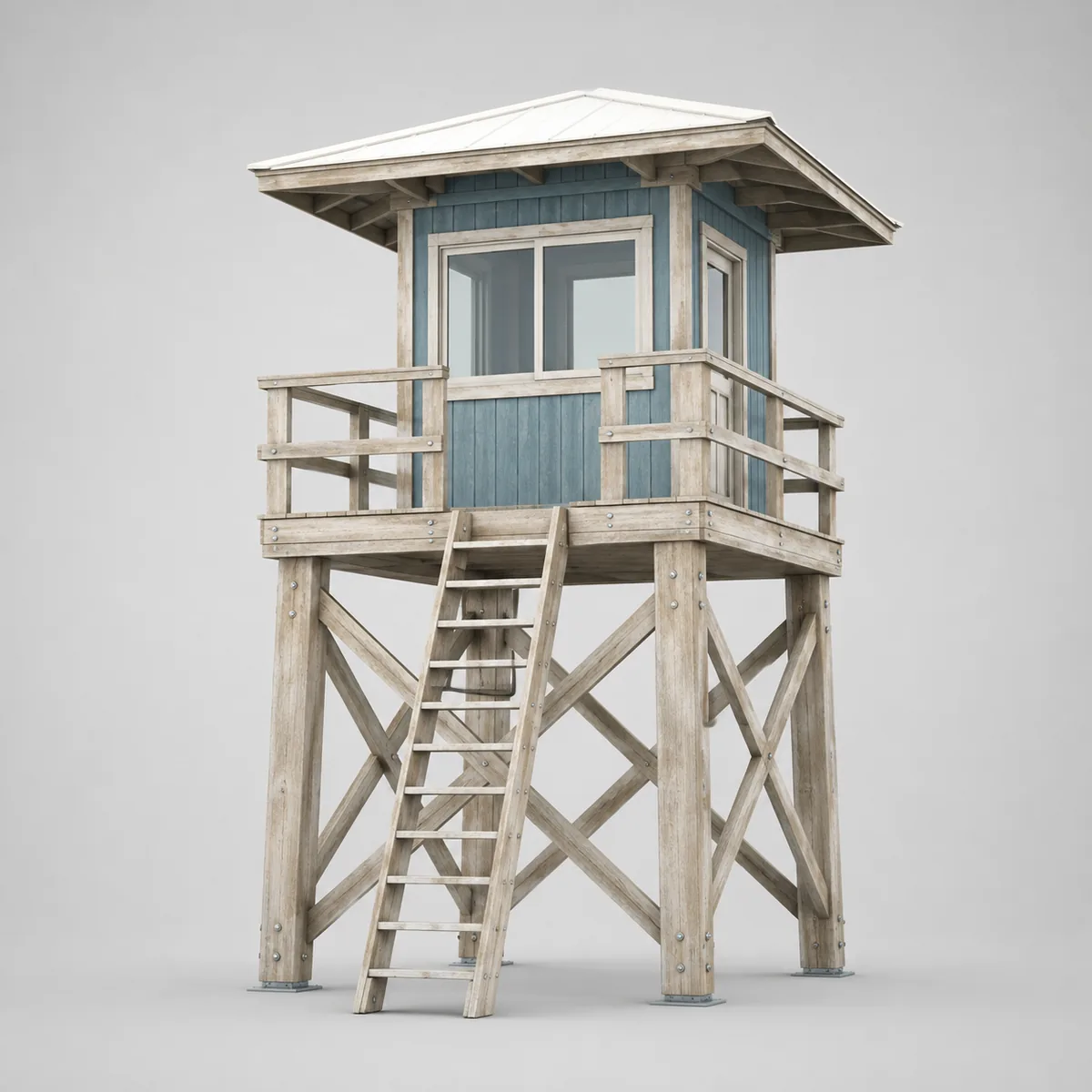 REFERENCE
02 / TEXT
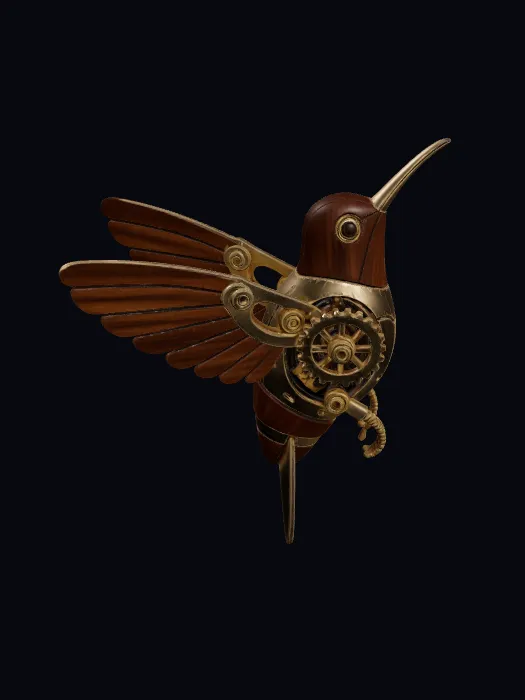
Turn a text prompt into a 3D model for rapid prototyping, set dressing, or concept development. Describe the shape, style, and materials; your agent handles the generation.
Create a model from text“Generate a mechanical hummingbird with intricate brass wings and a delicate metal body.”
03 / TEXTURE
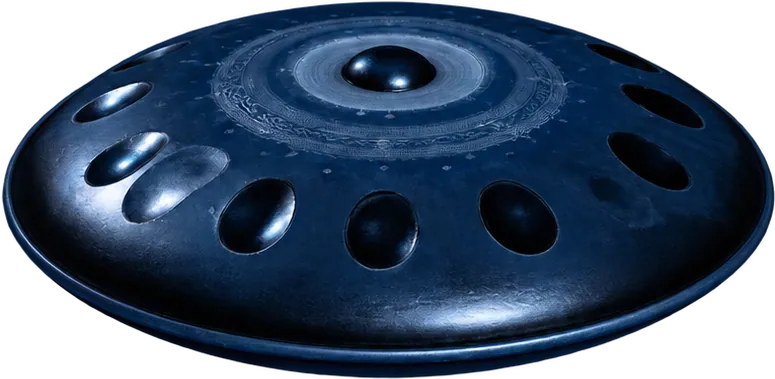
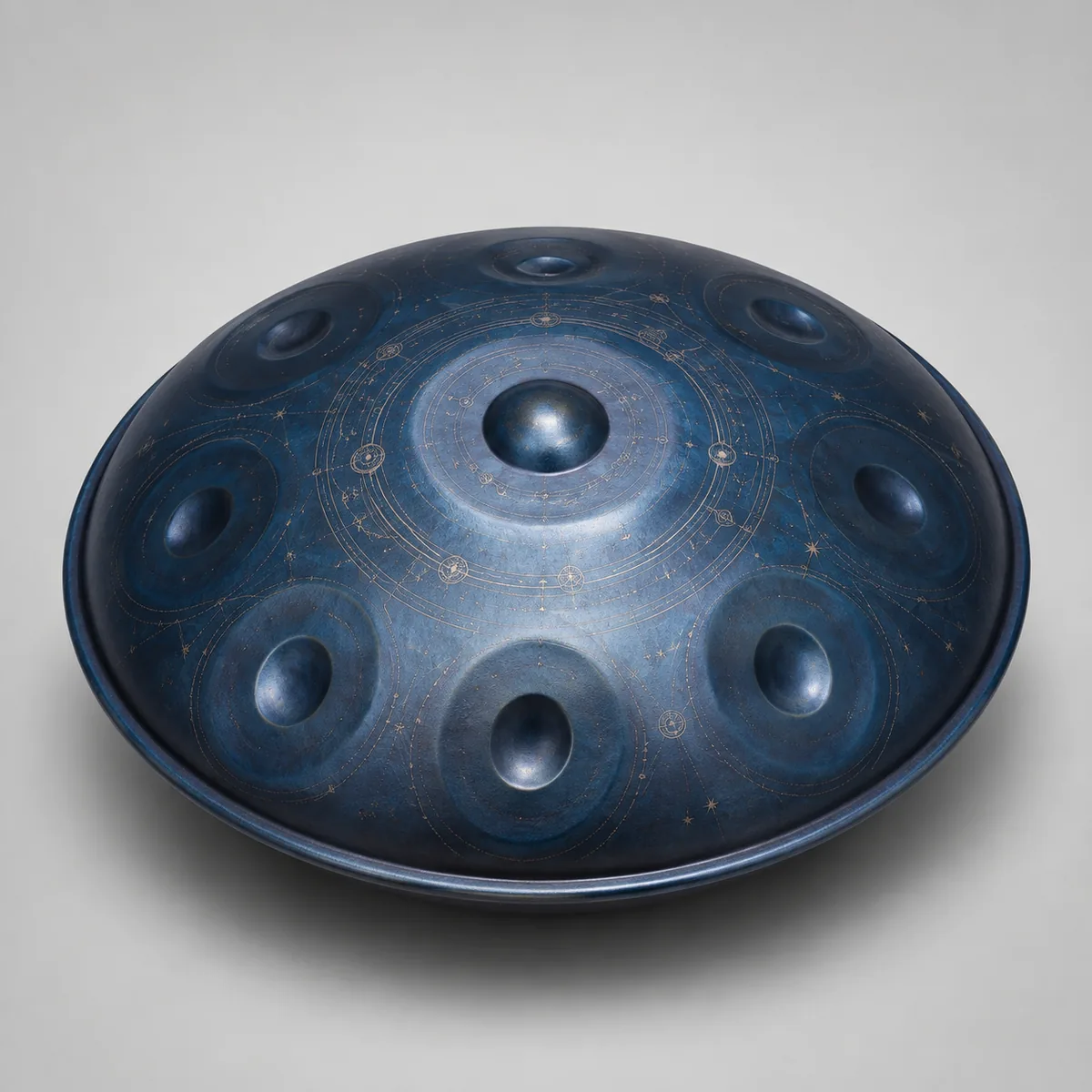
Use the AI texture generator to apply materials to a bare 3D mesh from a prompt or reference image. Explore and refine the look without leaving the conversation.
Texture a model“Texture this handpan with deep blue steel, engraved star trails, and subtle edge wear.”
 BARE MESH
04 / REMESH
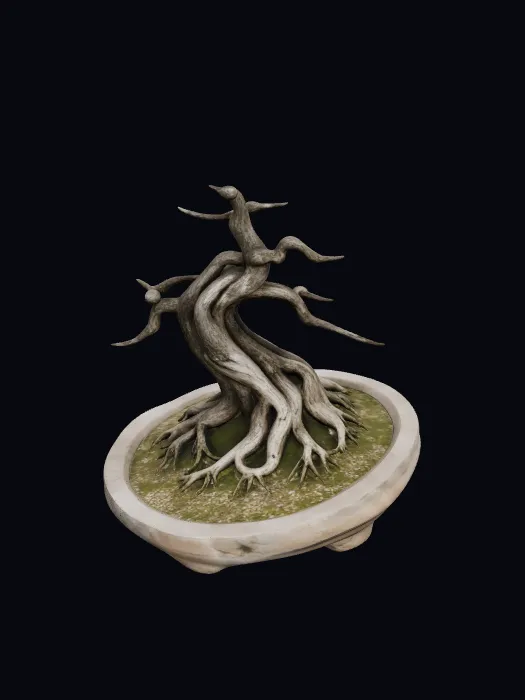
Remesh and optimize 3D models for real-time scenes, animation, or 3D printing. Set a target polygon count while preserving the silhouette and details that matter.
Optimize your mesh“Optimize this ancient olive bonsai for a real-time scene while preserving its branching silhouette.”
05 / IMAGINE
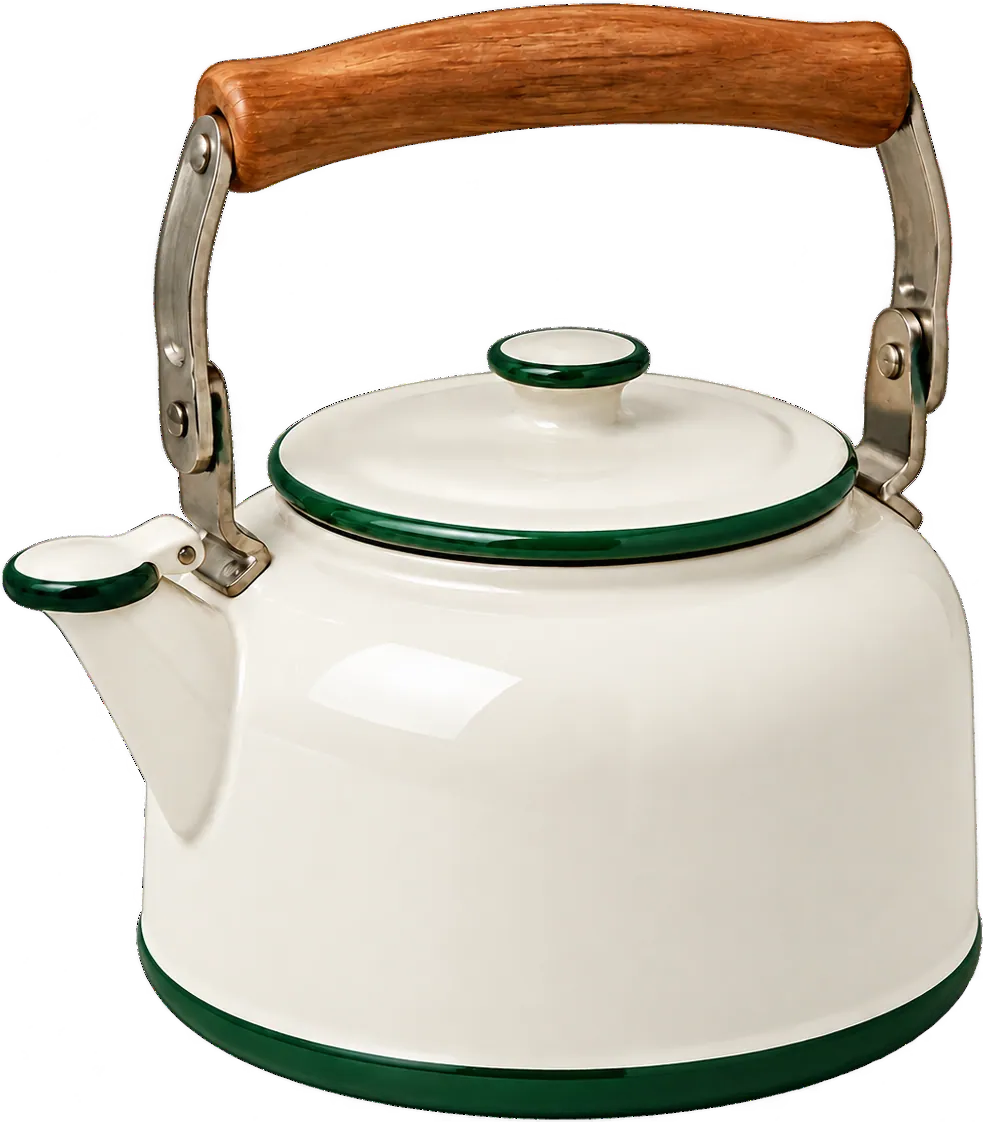
Generate concept art and reference images inside your AI agent, refine the direction, then pass the final image into an image-to-3D workflow.
Explore an idea“Create a product concept for a rugged enamel camping kettle with a warm, nostalgic finish.”
BUILT FOR THE BEST MODEL FOR THE JOB
Compare speed, detail, geometry quality, and texture support before your agent starts the job.
MADE FOR YOUR NEXT IDEA
Compare model generation, texturing, and remeshing results. Copy a prompt or open the matching 3D tool.

“Turn this cobalt lounge chair concept into a polished, textured 3D asset.”
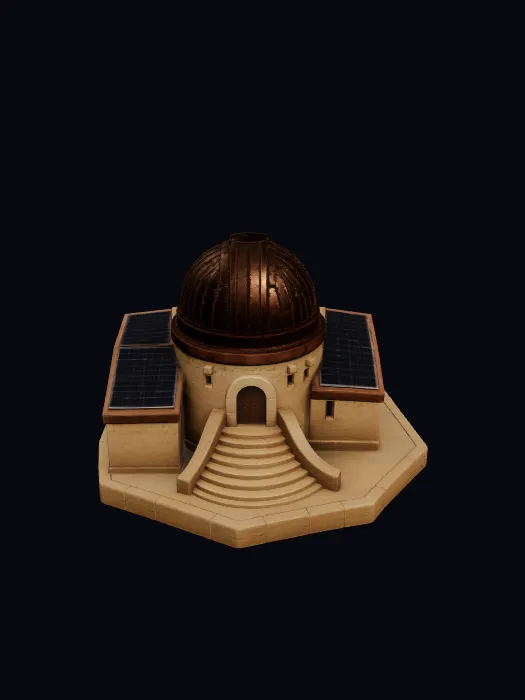
“A monumental sunwatch sculpture with weathered stone and warm metal details.”

“Soft moss, tiny blossoms, and a hand-painted ceramic cloud finish.”
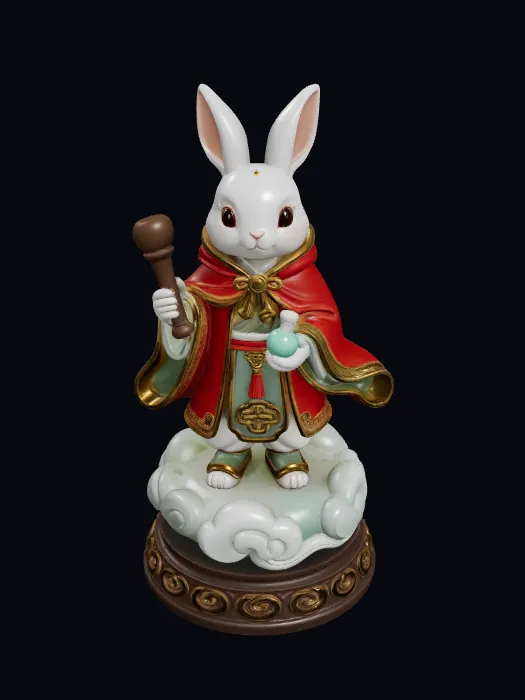
“Optimize this moon rabbit apothecary while preserving its miniature props and silhouette.”
A FEW THINGS TO KNOW
Setup, compatible agents, credits, storage, and exports.
A 3D model MCP server lets compatible agents call 3D generation and editing tools through Model Context Protocol. Kreat3D exposes model generation, AI texturing, remeshing, and concept image workflows through that connection.
It can generate 3D models from images or text prompts, apply textures, remesh geometry, create concept images, and return files for the next step in your workflow.
The connection guide supports Claude, ChatGPT, Cursor, and Codex, along with other MCP-compatible clients. Choose your client above for its setup instructions.
Choose your client in the connection guide, add the server URL, and follow the account authentication steps. API key requirements depend on the client and connection method; keys are managed in your Kreat3D account.
Credits depend on the tool, model, and generation settings selected for each call. Review the displayed cost and your account balance before starting a large batch.
Generated models are saved to your Kreat3D workspace, where you can inspect, texture, remesh, and export them. Workflows on this page include GLB, FBX, STL, OBJ, and USDZ outputs.
Connect to the AI 3D Model MCP server to generate, texture, remesh, and export assets from the tools you already use.
Connect Your AI Agent